

To optimize your gaming PC for 4K gaming, you’ll need a top-tier GPU, strong CPU, large storage and better cooling. Tweaking in-game settings such as DLSS/FSR, Ray-Tracing, Shadows, Textures contribute to better 4K gameplay. Playing games on a dedicated 4K gaming monitor with native G-Sync/Free Sync boosts higher frames rates compared to tradtional screens. Updating the GPU drivers and enabling the Windows Game Mode significantly improves the overall 4K gaming experience.
4K gaming refers to playing video games at a screen resolution of 3840 x 2160 pixels, which is x4 times higher than standard 1080p resolution. To play games at 4K settings, you require a high-end gaming PC with powerful components.
What Hardware Do You Need for 4K Gaming on PC?
The minimum hardware requirement for 4K gaming include a powerful GPU such as the RTX 5090, RTX 4090, or Radeon RX 9070 XT with massive VRAM. The need for a powerful CPU is essential as modern games perform better with a multi-threaded CPU. Consider having at least 32GB physical memory (RAM) on your gaming PC if you are gaming and streaming at 4K quality.
The essential hardware requirements for 4K gaming are discussed below.
Hardware Checklist for 4K Gaming
Core Hardware
- ☐ GPU: RTX 4080 / RX 7900 XTX (RTX 4090 for native 4K Ultra)
- ☐ VRAM: 12GB minimum, 16–24GB ideal
- ☐ CPU: Intel i7-13700K or Ryzen 7 7800X3D and above
- ☐ RAM: 32GB (XMP / EXPO enabled)
- ☐ Storage: NVMe SSD, 1TB or more
- ☐ PSU: 850W–1000W Gold rated
Display Setup
- ☐ Resolution: 3840×2160 (4K)
- ☐ Refresh rate: 60Hz minimum, 120–144Hz recommended
- ☐ Cable: DisplayPort 1.4 or HDMI 2.1
- ☐ Adaptive sync: G-Sync or FreeSync
1. Powerful Graphics Card
The whole logic of 4K gaming revolves around a graphics card. Playing video games at 3840×2160 resolution requires more rendering power compared to Full HD 1080p resolution. To achieve the maximum pixel count, you require a graphics card with massive VRAM to handle textures and robust ray tracing/upscaling hardware to for stable frame rates.
4K (3840×2160) has over 8 million pixels, compared to 2 million for 1080p (1920×1080) resolution. This means a graphics card would have to work seamlessly to build 4 times better visuals at 4K. Further, each pixel requires accurate color values calculated along with other parallel processing tasks. When a GPU has to do a lot of parallel work, it puts a heavy workload on the CUDA Cores/Stream Processors dedicated for this task.
In total, you require an advanced graphics card with plenty of VRAM, Bandwidth, and CUDA/Stream cores to handle heavy rendering workload at 4K resolution. A general rule is to get a graphics card with at least 12GB of VRAM to play games at 4K settings. Graphics cards including RTX 4090, RTX 5090, and AMD RX 9070 XT are tailored for 4K gaming.
2. Fast CPU
Though, 4K is tied to a top-end graphcis card, a weaker CPU can cause bottlenecking issues when paired with powerful GPU. A latest generation CPU with multiple cores handles complex game logic while producing stable higher frame rates (over 144fps) for maximizing gaming performance. Installing a CPU compatible with graphics card results in seamless rendering while avoiding any stutters or glitches during gameplay.
For absolute best 4K gaming performance, consider getting AMD Ryzen 7 9800X3D and Intel Core i9-14900K/9900 for top-tier performance.
3. Sufficient RAM
4K gaming requires adequate RAM (at least 32GB) for smooth gameplay. Modern AAA games consume over 20GB when switched to higher resolution . The speed and latency of RAM significantly impacts the overall gaming performance. Priortize DDR5-6000+ modules with minimum of 32GB memory and XMP/EXPO profile for stable 4K performance. Enabling the XMP profile on RAM improves 4K gaming performance in games like CyberPunk 2077, Spiderman, etc.
4. Latest Storage
Installing games on NVMe SSD offers improved gaming performance over the traditional hard drives. The latest NVMe interface delivers faster data transfer speeds of up to 7 Gbps for solid 4K gaming performance. An advanced storage device reduces the game loading and scenes switching time.
5. 4K Gaming Montior
Gaming on a 4K monitor offers improved performance (refresh rates, response times, input lag) compared to tradtional gaming montior or TV. Modern 4K TV, though, offer immersive and cinematic experience, they still slightly lag behind dedicated 4K gaming monitors in terms of responsiveness.
4K gaming monitors offer minimal input lag, meaning you get maximum response while playing competitive shooter or AAA games. These monitors come with advanced G-Sync/FreeSync support to prevent screen tearing at 4K resolution.
6. Right Connection Cable
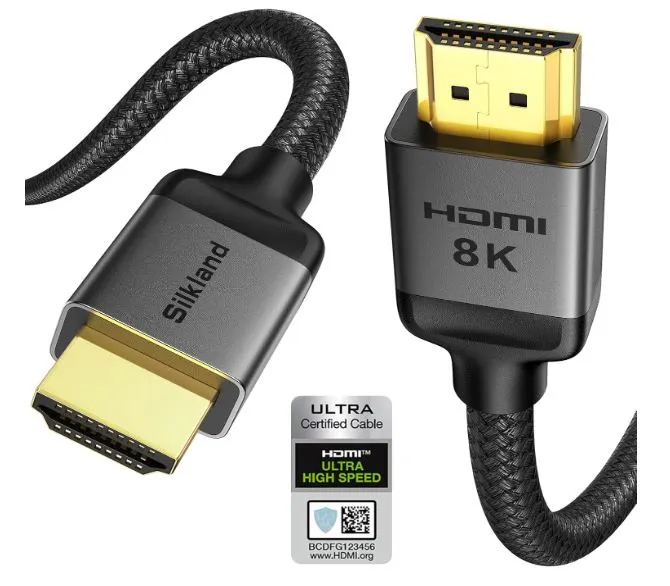
Connecting your gaming PC to 4K gaming requies compatible connection cable such as HDMI 2.1 or DisplayPort 1.4. Using the right cable promotes higher bandwidth for 4K gaming. A dedicated 4K gaming cable allows gamers to experience much-needed features such HDR, adaptive Sync, and reduced input lag without hassle.
7. High-End Cooling & Power
A gaming PC exposed to 4K gaming produces enough heat to be dissipated using a proper cooling kit. Install a high-end AIO 360mm liquid cooler to maintain optimal temperature for graphics card, CPU, and other beefy components. Along with proper heat management, you require a high-wattage PSU (850W minimum) to fuel essential hardware like GPU, CPU, SSD, and RAM.
Install a high-end custom cooling solution for thermal managment and solid 4K gaming performance. A quality cooling setup creates a position air pressure inside the chassis and prevents dust build up. No dust inside the chassis reduces the heat trap and improves the life of hardware responsible for 4K gaming such as GPU, CPU, RAM, etc.
How to Optimize a PC for 4K Gaming Performance?
Follow the steps below to optimize a PC for 4K gaming performance once you met the basic hardware requirements.
1. Update GPU Drivers
The first step is to update your graphics card drivers even if you’ve bought it the same day. Nvidia and AMD often release new driver update for their products. Therefore, visit the official site of your card manufactur to see if there any new driver update available to download.
2. Enable Game Mode
Once you’ve updated the GPU drivers, next step if to enable the Game Mode. Simply, type the “Game Mode” in the search bar at the bottom of your Windows screen and switch to “On” to activate it. Enabling the Game Mode allows the Windows to allocate more resources to the game application running while reducing the quota for running in background.
3. Adjust In-Game Settings
Adjusting the in-game settings including Resolution, Shadows, Textures, Anti-Aliasing, HDR, DLSS/FSR, Ray-Tracing, etc allows you to balance your system with the best possible playable settings.

For best 4K playable experience, focus on adjust the following in-game settings.
a) Resolution: As you’ll be playing games at 4K settings, the first thing to do is to set resolution to 3840 x 2160 or 4K from the display resolution settings.
b) Visual Quality Presets (High, Medium, Low): Though modern game automatically select the right visual quality preset by analyzing your gaming PC hardware, setting these manually gives you more control over performance. Start by selecting the “High” preset and monitor if you get stable frames rates at 4K resolution. Move to lower presets (medium or low) until you achieve smooth gameplay.
c) Upscaling (DLSS/FSR/XeSS): Modern games provide upscaling options like DLSS, FSR, and XeSS to boost frame rates in gameplay. This AI technology renders the frames at lower resolution and then upscale those frames as high resolution output. Start with the “Quality Preset” while enabling DLSS for an optimized gaming experience. In case, you require more 60 FPS+ boost, select “Performance Mode“.
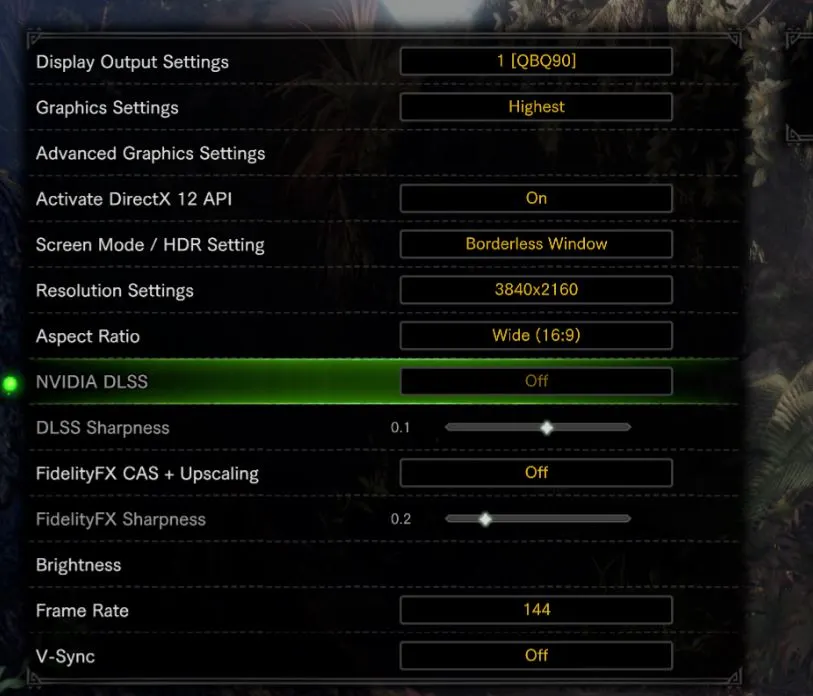
d) Adjusting Image Quality: To improve 4K gaming experience, adjust image quality settings such as reducing anti-aliasing, shadows, and textures. Here’s a tip, reduce or even turn off traditional anti-aliasing (AA) as 4K itself offers higher pixel density to naturally smooth jagged edges. Set Textures to Ultra, but drop Shadows to High for significant performance with almost no visible loss in quality. Turning off “Motion Blur” and “Depth of Field” in open world games results in sharp 4K picture quality.
e) Use Adaptive Sync: Playing games at higher resolution such as 4K may result in screen tearing, meaning your graphics card and monitor aren’t synchronized. Enabling the G-Sync or Free-Sync eliminates screen tearing issues, thus enhancing overall gameplay.
4. Optimize Software Settings
By optimizing software settings, it means to adjust the Power Option to “Performance” or “Ultimate Performance”” mode if using a 4K gaming laptop. Close browsers, streaming apps, and disable startup programs to allocate more system resources for gaming at higher resolution. Enable Hardware-accelerated GPU Scheduling in Nvidia Experience or AMD Catalyst contol panel to boost gaming performance.
5. Set Refresh Rate
To experience best 4K gameplay, set your montior refresh to 120Hz or 144Hz if natively supported. Modern 4K OLED monitors and TVs offer higher refresh rate and visual fidelity over traditional screens in compeitive 4K gameplay.
What are Best Graphics Settings for 4K Gameplay?
Below are the best graphics settings to achieve high-end 4K gameplay performance.
- Enable DLSS/FSR to boost frame rates.
- Reduce Anti-Aliasing
- Set Textures to “Ultra”.
- Adjust Shadows to “High”.
- Disable Motion Blur and Depth of Field.
- Enable Frame Generation for visual smoothness.
Which graphics settings do not affect 4K gaming performance?
The graphics settings that do not affect native 4K gaming performance include Motion Blur, Film Grain, Chromatic Aberration, and Depth of Field. These settings do not significantly boost visual quality when gaming at 4K resolution. However, turning off these settings takes off load from GPU, thus allocating more resources for other settings that do matter in 4K gaming.
Does DLSS or FSR improve gaming performance at 4K resolution?
Yes, DLSS or FSR both improve gaming performance at 4K resolution via AI upscaling to boost average frame rates.
What refresh rate is ideal for 4K gaming?
The ideal refresh rate for 4K gaming is 120Hz or higher for minimal input lag. 120Hz is the standard in 4K gaming, however, players can get extra benefit from 240Hz refresh rate if they are involved compeitive gaming sessions.
Do I need HDMI 2.1 or DisplayPort 1.4 for 4K 60 Hz/120 Hz?
Yes, you should use HDMI 2.1 or DisplayPort 1.4 cable for 4K 60Hz/120Hz gameplay.
Which is the best graphics card for 4K gaming?
The best graphics cards for 4K gaming include RTX 5090, RTX 5080, RTX 5070, RTX 4090, and AMD RX 9070 XT. These GPUs are packed with beefy video memory (16GB+) and latest DLSS/FSR technology to take 4K gaming to next level. The RTX 5090 is the King of 4K gaming with massive 32GB GDDR7 VRAM and 512-bit memory interface. The AMD Radeon RX 9070 XT with 16GB VRAM offers best value and performance in 4K gaming at a lower price.
Which is the best CPU for 4K gaming?
The best CPU for 4K gaming currently is the AMD Ryzen 7 9800X3D featuring 8-cores, 4.7 GHz base clock speed, and a massive 96MB L3 Cache for high-end gaming. In 4K gaming, a CPU has to be fast enough to access the data coming from system RAM. The Ryzen 7 9800X3D fast enough to fetch and process data in real-time to keep up with pace of GPU creating visuals at 4K.
How much RAM and storage is required for 4K gaming?
For 4K gaming, the recommended RAM capacity is 32GB. Along with the massive capacity, a RAM needs to be faster (6000 MHz or higher) to communicate efficiently between the CPU and GPU for smoother gameplay.
In context of storage capacity, 4K-optimized games frequently exceed 150GB to 200GB in file size. A 1TB SSD can easily be filled up by 4 to 5 games of such size. I recommend you to go with 4TB SSD drive if you are too heavy on installing games. However, if you just install, play, and delete games, then a 2TB storage drive is enough to have in your system.
How much PSU is required for a 4K gaming PC?
A 4K gaming PC requires at least 850W to 1000W Gold-rated PSU for uninterruped performance.
Is 4K gaming hardware capable of 8K gaming?
Yes, a 4K gaming hardware is capable of 8K gaming. However, gaming at 8K resolution with a 4K gaming hardware results in reduced FPS. 8K resolution requires more hardware resources compared to 4K resolution. Moreover, optimizing PC for 8K gaming is slightly different from 4K gaming.

Mosaab Jamal Ahmed brings 12+ years of PC Hardware experience to the table. His journey began in 1998 with a Pentium 1 PC, igniting his lifelong fascination with computer hardware and video games. Over the years, Mosaab has honed his skills in upgrading and building gaming PCs. He has built dream gaming machines for multiple brands and local businesses throughout his career. Mosaab’s areas of expertise are building custom gaming PCs, in-depth PC hardware analysis, and PC hardware reviews.